Applying to Products
After building an Option Set, you need to apply it to one or more products. Open the Option Set and click the Products tab — it has four sections, all on the same page.
Apply to specific products
Select specific products by browsing your BigCommerce catalog. Best for:
- A small, fixed list of products
- Products that don’t share a common attribute (tag, type, etc.)
Click Browse & select products, then search and check off the products you want this Option Set applied to.
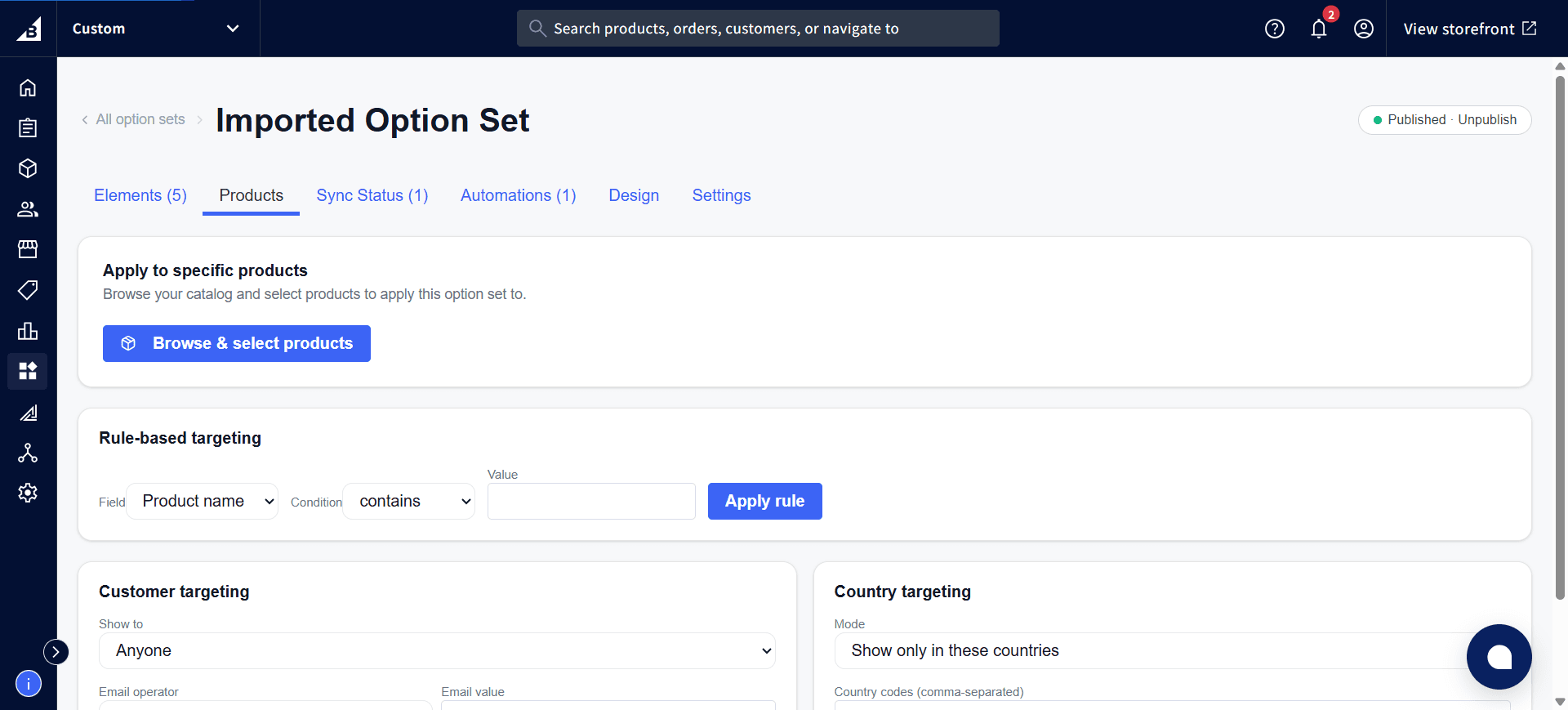
Rule-based targeting
The app applies the Option Set to any product that matches a rule you define, checked automatically whenever you save the option set. Best for:
- A product line defined by a shared naming pattern
- “All products with X in the name”
Choose a Field (e.g., Product name), a Condition (e.g., contains), enter a Value, and click Apply rule.
Customer targeting
Controls which customers see this Option Set at all — useful for wholesale-only or VIP-only options.
| Setting | Description |
|---|---|
| Show to | Anyone (default), or restrict to logged-in customers matching an email rule |
| Email operator | How the email address is matched (e.g., contains) |
| Email value | The text to match against the customer’s email (e.g., @wholesale.com) |
Country targeting
Controls which countries see this Option Set, based on the storefront’s detected shipping country.
| Setting | Description |
|---|---|
| Mode | Show only in these countries, or hide in these countries |
| Country codes | Comma-separated two-letter country codes (e.g., US, CA, GB) |
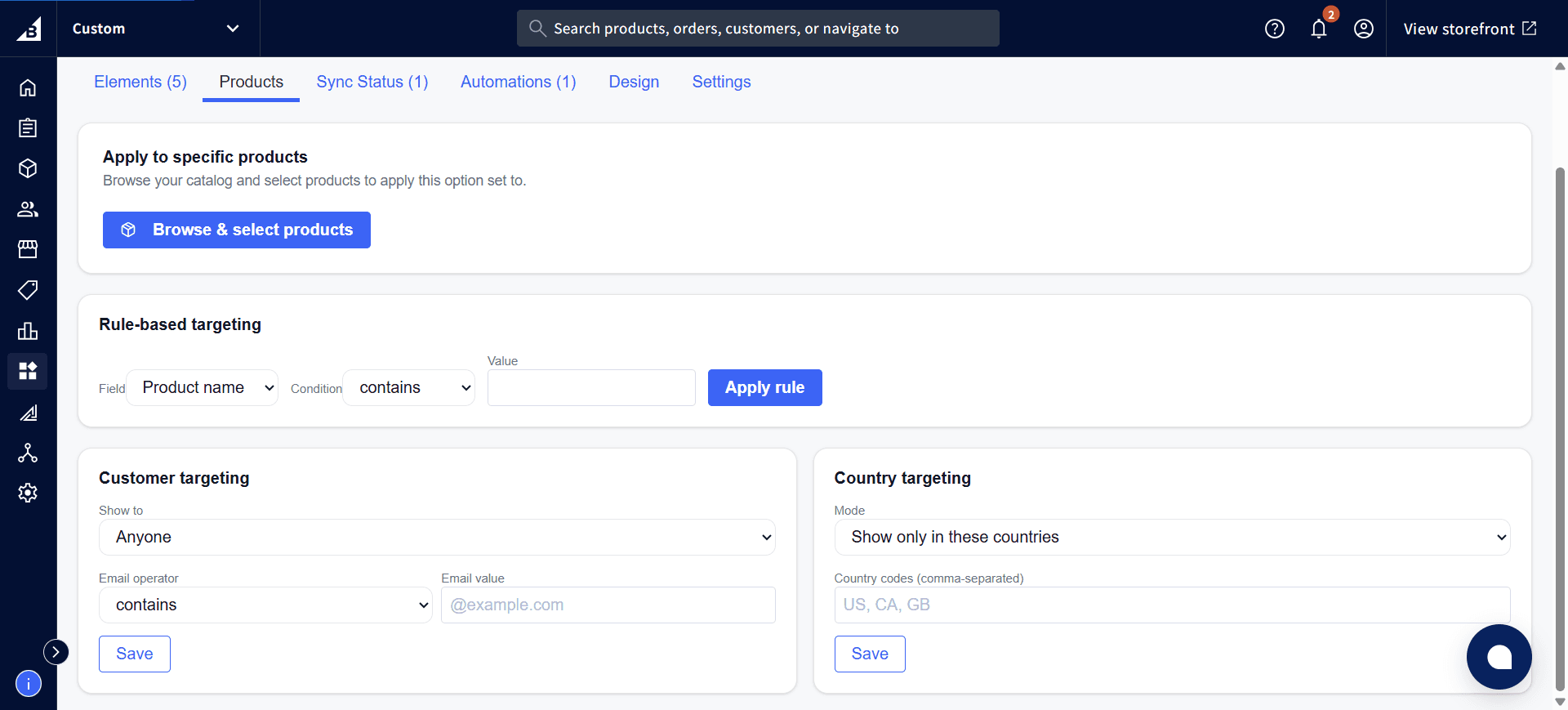
Rule-based, Customer, and Country targeting each save independently with their own Save button — you don’t need to save the whole page at once.
Re-applying after changes
When you change an element (add a new value, rename the label, change the type), the setup on existing applied products is out of date. You need to re-apply:
- Open the Option Set → Sync Status tab
- Click Re-sync products (or re-sync a single failed product)
This removes the old setup and creates new records in BigCommerce. Existing cart items or orders are unaffected — they recorded the option values at order time.
Multiple Option Sets on one product
You can apply more than one Option Set to the same product. Each set renders as a separate fieldset on the product page, stacked in the order they were applied. Each set’s elements are set up independently — there’s no cross-set conditional logic.