Date Field
A date picker. The customer clicks the field and their browser shows a calendar to pick a day from — no typing required.
When to use
- A delivery date or event date the order is needed by
- A booking or appointment date
- Any custom field where the answer is a specific day
For a time of day instead of a date, use Time Picker.
General settings
| Setting | Description |
|---|---|
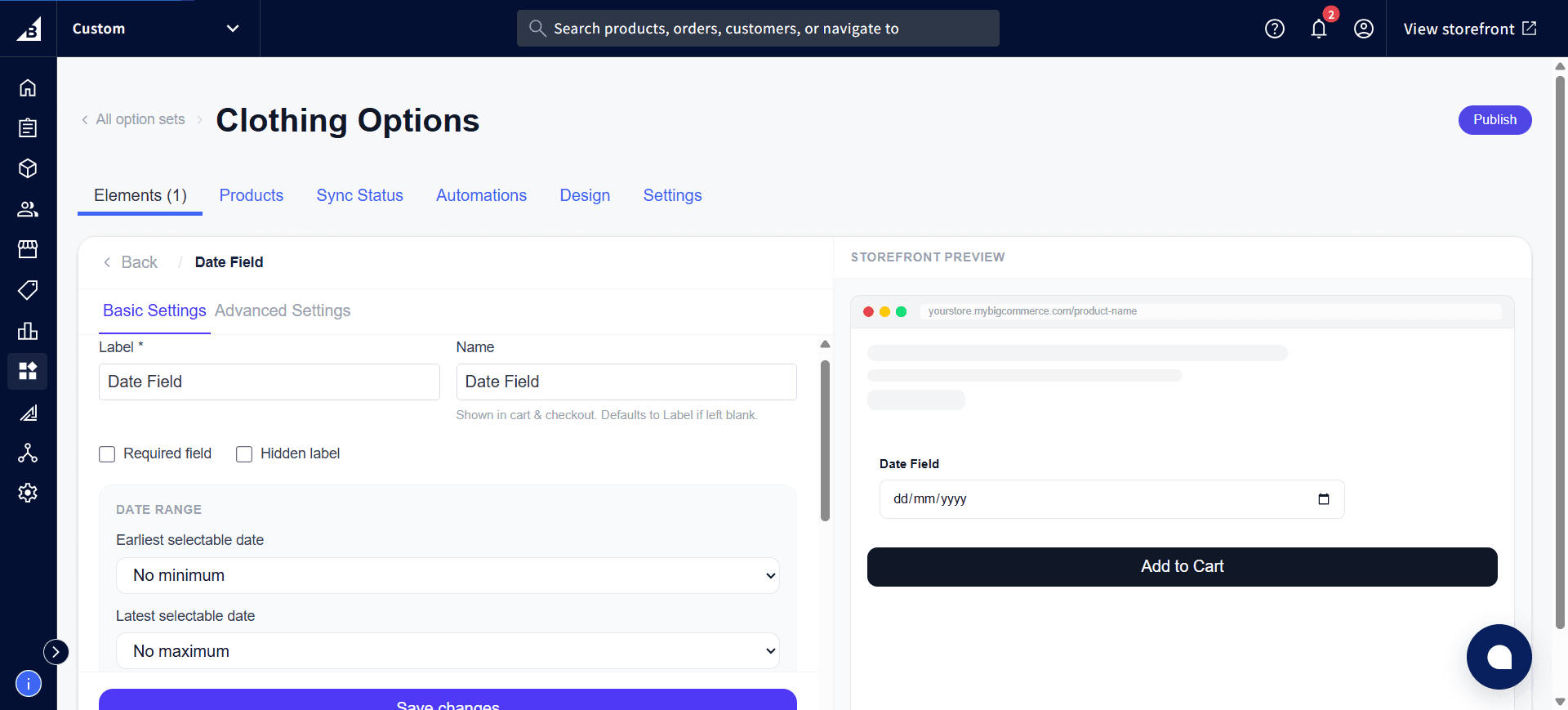
| Label | Field label shown on the storefront |
| Required | Customer must pick a date before adding to cart |
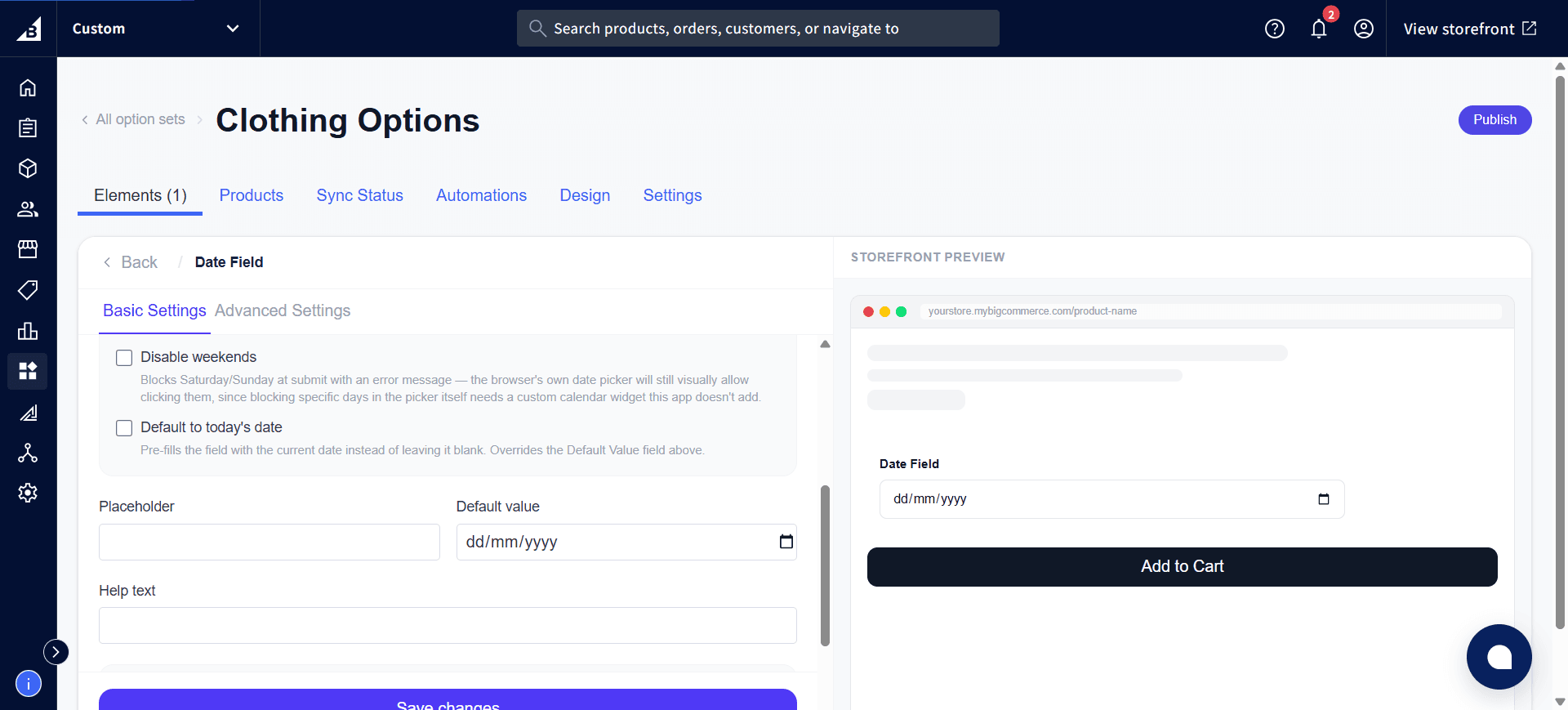
| Help text | Short guidance below the field |
| Default value | Pre-fills the field with a specific date |
Date range
| Setting | Description |
|---|---|
| Earliest selectable date | No minimum (any past or future date), Today, Days from today (e.g., always at least 5 days out — useful for rush-order cutoffs), or Specific date (a fixed calendar date) |
| Latest selectable date | Same options as above, but for the far end of the range |
| Disable weekends | Blocks Saturday and Sunday. The app checks this when the customer adds the product to their cart and shows an error if they picked a weekend — most browsers’ built-in calendar pickers will still visually let the customer click a weekend date, but it won’t be accepted. |
| Default to today’s date | Pre-fills the field with the current date automatically. This overrides the Default Value setting above. |
Storefront behavior
- Displays as a standard date field — clicking it opens the browser’s native calendar picker
- Dates outside the configured range can’t be picked in most browsers, and are always rejected on add-to-cart even if a customer manages to enter one
- Required validation fires on add-to-cart — field highlighted in red if empty
- The date the customer picks is recorded on the order.