Design Presets
The Presets sub-tab of an Option Set’s Design tab lets you apply a full, built-in theme in one click — background, text, accent, and border colors all set together — instead of picking each color individually on the Colors sub-tab.
Applying a Preset Theme
- Open an Option Set → Design tab → Presets sub-tab (this is the tab shown by default when you open Design)
- Click any theme card to apply it immediately
- Check the Live Preview panel on the right to see the result
- Click Save in the top-right of the Design tab to keep the change
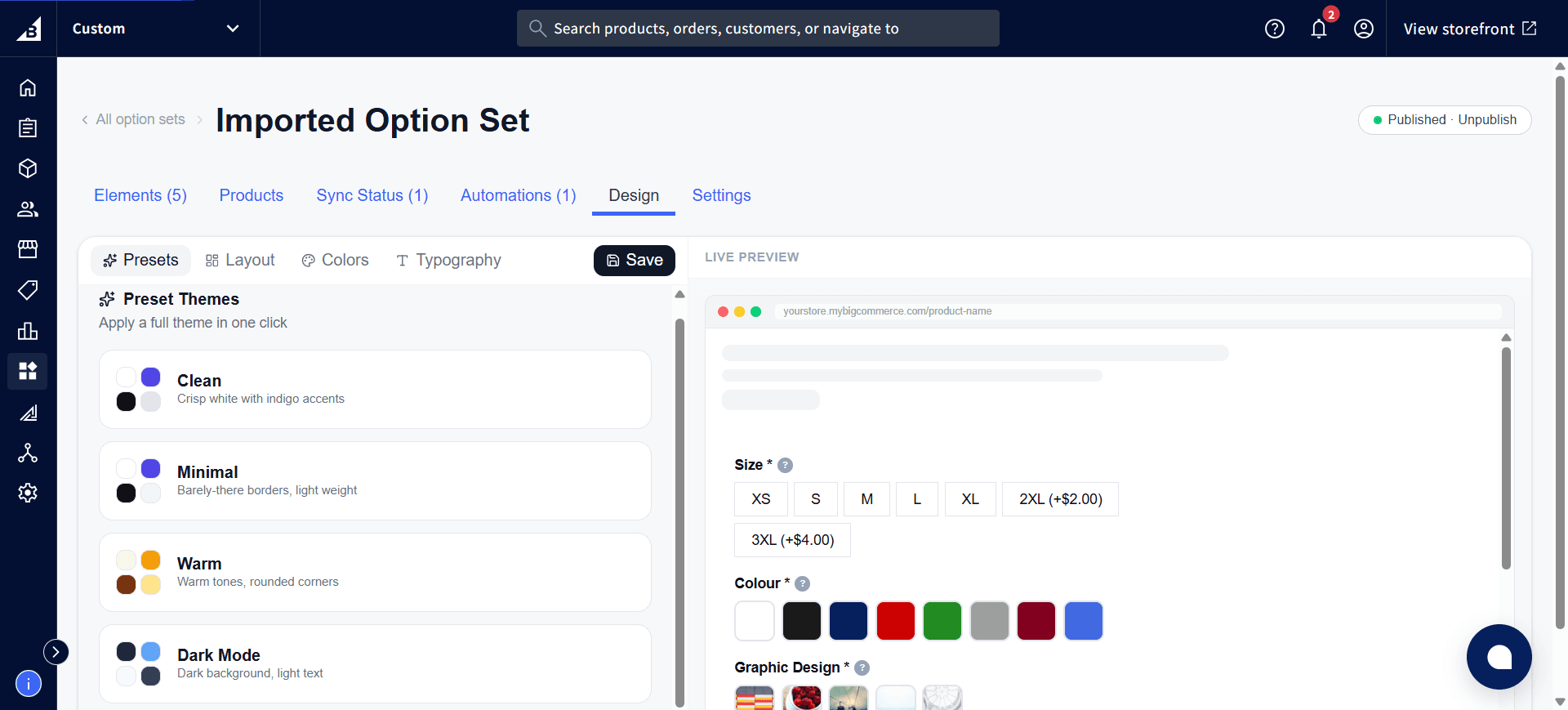
Available themes
| Theme | Description |
|---|---|
| Clean | Crisp white background with indigo accents |
| Minimal | Barely-there borders, light weight |
| Warm | Warm tones, rounded corners |
| Dark Mode | Dark background, light text |
After applying a theme
Applying a theme is not a one-way lock-in — after clicking a theme card, you can still fine-tune individual colors on the Colors sub-tab or spacing on the Layout sub-tab. Those manual tweaks stay in place even though you started from a preset theme.
Applying a different theme card later overwrites any manual color changes you made — so make manual tweaks after picking a theme, not before.