File Upload
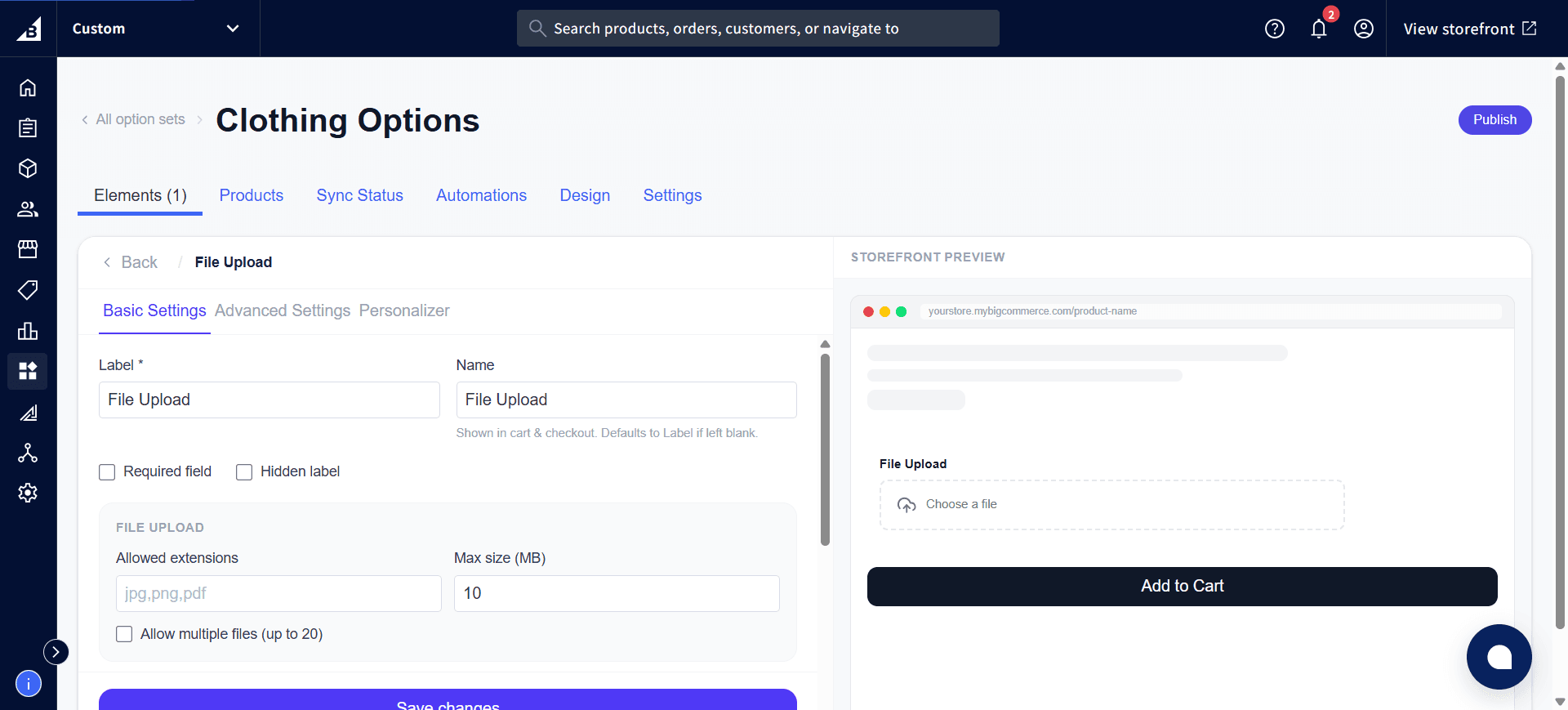
Allows the customer to upload one or more files as part of their order — an image, logo, PDF, or any custom file type you specify.
When to use
- Custom logo or artwork for printing/embroidery (customer uploads their file)
- Pet portrait or photo-personalization products
- Custom design files, PDFs, or reference documents you need for production
- Any product where the customer’s file is a core part of what they’re ordering
General settings
| Setting | Description |
|---|---|
| Label | Field label shown above the upload zone |
| Required | Customer must upload at least one file before adding to cart |
| Help text | Guidance below the upload zone — use this to specify format requirements, minimum resolution, or file size limits |
| Allowed extensions | Comma-separated list of permitted file extensions (e.g., jpg,png,pdf,ai). Leave blank to accept all file types. |
| Max file size (MB) | Maximum size per uploaded file in megabytes. Default is 10 MB. |
| Allow multiple files | When enabled, the customer can upload up to 20 files. When disabled (default), only one file is accepted. |
Where uploaded files go
Files are uploaded directly from the customer’s browser to secure cloud storage. Files go directly to secure storage — they don’t pass through BigCommerce or any intermediate system. The upload happens immediately when the customer selects a file — before they click “Add to Cart.”
Once uploaded, a link to the uploaded file is recorded on the order. You can find this link in the order under the modifier value — clicking it downloads or previews the file.
Storefront behavior
- Renders as a drag-and-drop upload zone with a “Browse files” / “Choose file” button
- Shows an upload progress bar during transfer
- After upload: displays a thumbnail (for images) or a filename + file type icon (for other types)
- Customers can remove a file and re-upload before adding to cart
- Multiple files show as a list of uploaded items when Allow multiple is on
- The order records a link to each uploaded file. If multiple files were uploaded, each link appears on the order.
Notes
- File links are permanent — uploaded files are not deleted after the order is placed, giving you reliable access to the customer’s files for production.
- Only the file extensions specified in “Allowed extensions” appear in the file browser picker. If the customer manually tries to upload a disallowed type, an error message is shown.
- Very large files (over 20–50 MB) may time out on slow connections. Set a reasonable max file size and communicate it in the help text.